
Cornell Graduate School Application Fee Waivers – Detailed Instructions
General Eligibility Criteria
Requests are only approved for applicants to fully funded doctoral or research master’s programs, or those who will submit a FAFSA to apply for federal student aid to pay for their program.
Types of Fee Waivers
- Service and Graduate School Pathways Initiatives
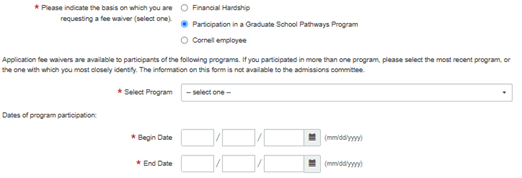
- Not all service and pathways programs are eligible for an application fee waiver. You will need to consult the current listing of eligible programs within the Graduate School application to determine whether you participated in an eligible program.
- After confirming your eligibility, you will select the appropriate program from the list and then click the “submit and pay” button.
- Financial Hardship
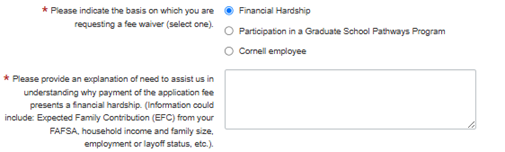
- If you apply for a financial hardship fee waiver, you will need to provide a brief but well-reasoned explanation of how the application fee presents a financial hardship for you. Relevant factors include unemployment or underemployment, the Expected Family Contribution (EFC) from a recent FAFSA, economic conditions in your home country, etc. You can type your explanation on the fee waiver request page of the application form.
Fee Waiver Request Process
After determining your eligibility (see details above), you can request a fee waiver through the payment page of the online application form. Both Pathways Programs and Financial Hardship fee waiver requests are reviewed, and notifications are sent within one to three business days. Therefore, please submit your application with the fee waiver request at least three business days before the published application deadline for the program to which you are applying. If your request is approved, you will receive an email confirming that your Cornell graduate application has been received. If your request is denied, you will receive an email notification requesting that you revisit your application and pay the fee.
Fee Waiver Request Steps
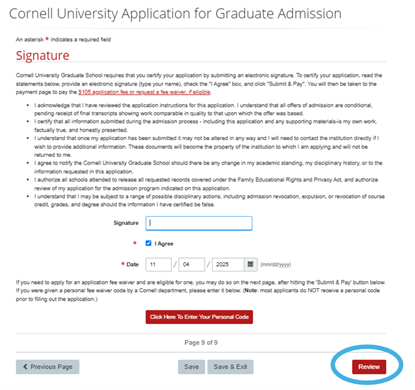
- When you reach the end of the online application, on page 9, click the red “Review” button.
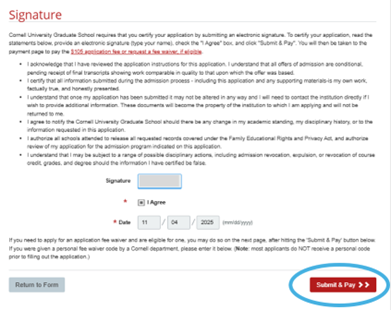
- Once you have reviewed your application submission, click on the “Submit and Pay” button.
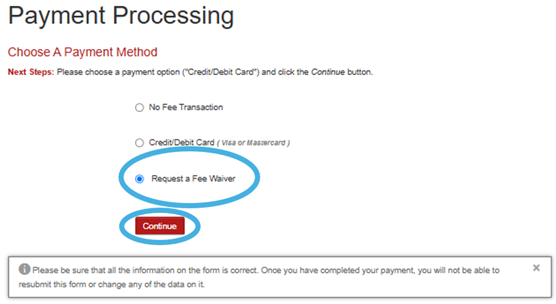
- Now, you will see three options, the third of which is “Request a Fee Waiver”. Select that option and click “Continue.”
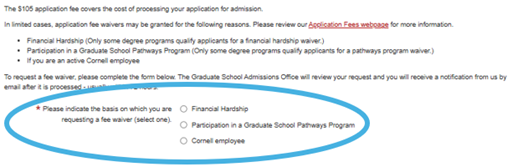
- On the next page, the top portion will be automatically completed for you based on the information you provided in the online application. Then you will have three options for fee waiver eligibility: Financial Hardship, Participation in a Graduate School Pathways Program, or Cornell employee. Select the option that pertains to you.
The next steps will vary depending on which of the three options you select.
For Financial Hardship, you will be asked to write a brief statement.
For Participation in a Graduate School Pathways Program, you will need to select your program from the eligible dropdown list and provide the dates of your participation.
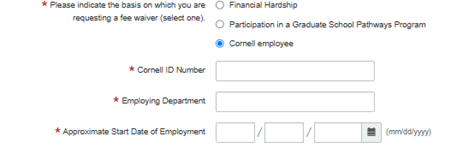
Cornell Employees will need to provide their Cornell ID number, department and approximate start date of employment.
- Once you have completed the fee waiver portion, to submit your application, you will need to agree to the terms, enter the current date and click on “Apply for Waiver.”
